Mobile Sales App How To Use
| Document Version | v.1 |
|---|---|
| Document Last Updated | 4/12/2023 |
| Software Version Documented |
Overview
In this document, the concepts and processes of using the Mobile Sales Application will be described. The app can be downloaded to a tablet or mobile device to be used on a showroom or sales floor to start a quote with a customer and add items as they go. Then when ready they will go to the register to complete the transaction.
Assumptions
We will assume throughout this article that your business uses mobile devices such as mobile phones and/or tablets.
General Concepts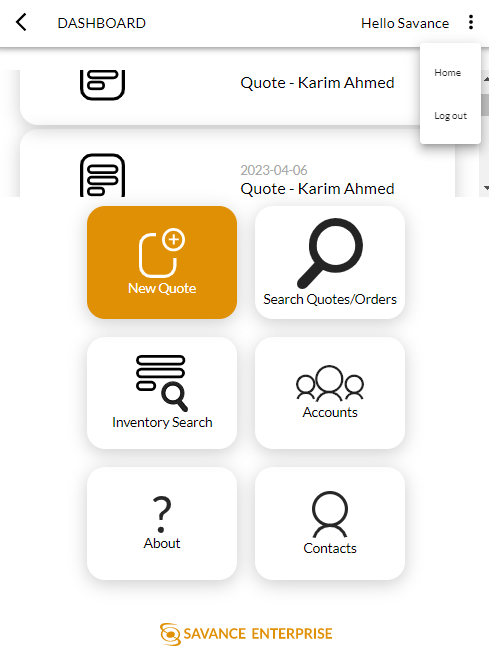
-
Upon logging into the app, you will notice the top banner listing recent quotes.
-
The 3 dot menu at the top right allows you to tap Home or Log Out.
-
From any screen in the app, tapping Home will take you back to this main screen.
-
Also, tapping the back button at the top left will take you back to the previous screen and eventually home screen.
-
-
You can also start a new quote, search for existing quotes and orders, do an inventory search, search for customer account details, and then search for contacts.
New Quote
-
To begin a new quote, tap on the New Quote button in the home screen.
-
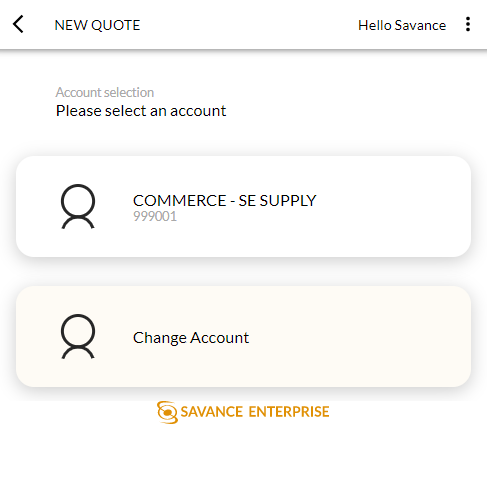
It will ask you to select an account/customer. If you were already working with a customer in the app, that same customer will appear to choose, or select a different customer by tapping Change Account.
-
If I tap Change Account, the account search will appear and I can search for the customer. When the customer is found, tap on it to continue.

-
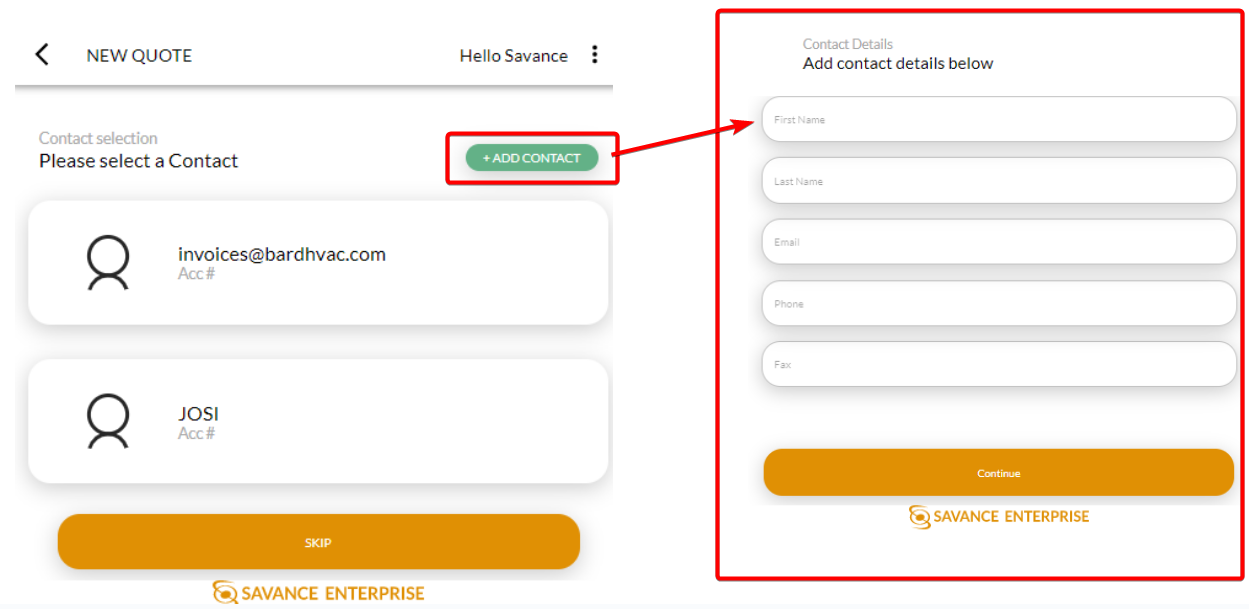
Then it will ask you to select a contact for this quote. You can add a new contact too. You also have the option to skip selecting a contact.
-
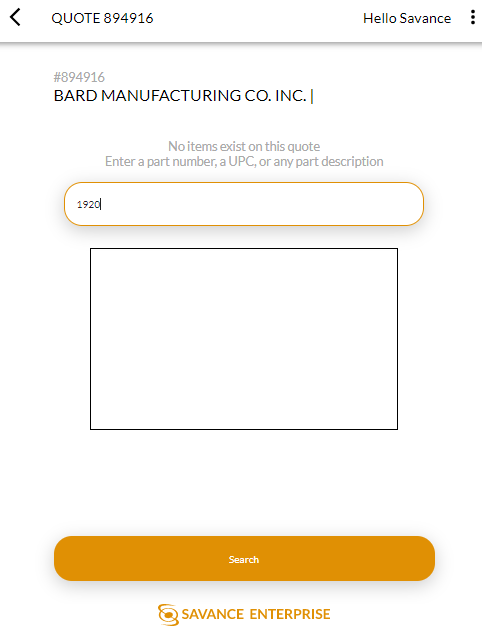
Whether you choose a contact or skip it, the next screen will be where you start searching for items to add to the quote.
-
Start typing in any item info like part number, upc, or description. This can be partial information too, it will do a search for any item that contains those characters.
- If your device has a camera or scanner, you can also scan a barcode or QR code.
-
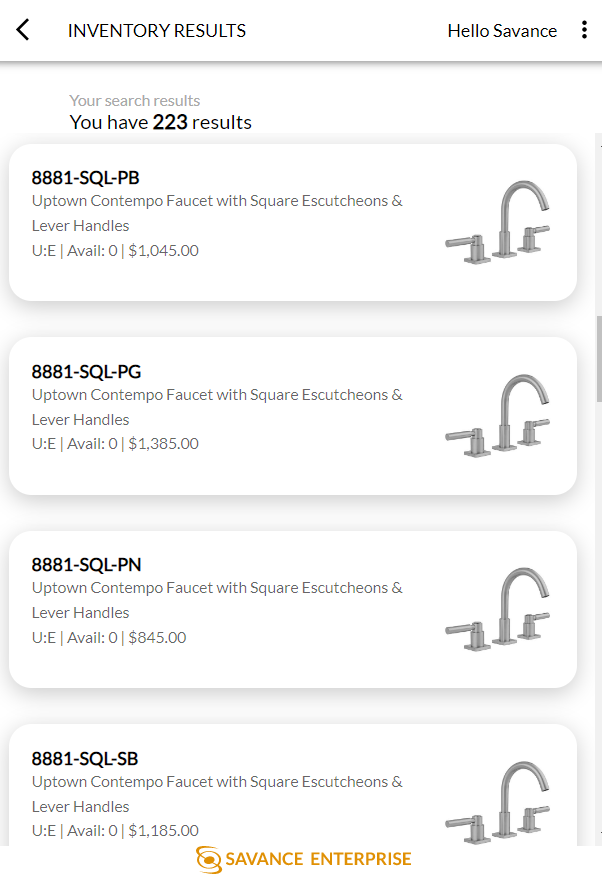
Tap search and the Inventory Results will appear. If you have images attached to your part numbers, they will show here too, with other details like description, unit of measurement, availability, and price.

-
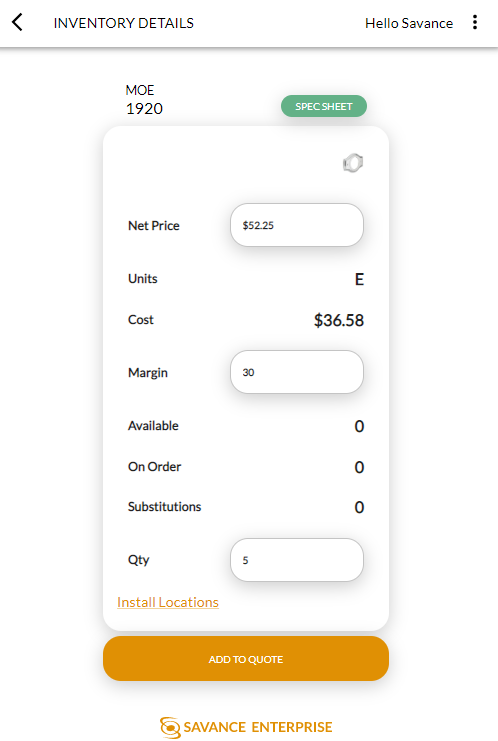
Tap on an item to view more details.
-
You can change the price. When the price changes the margin refreshes based on cost.
-
It shows the units of measurement
-
Cost
-
When the margin is changed, the Net Price refreshes based on the cost.
-
Availability, on order, and substitutions
-
And you can enter a qty
-
Spec Sheet
- If that item has a spec sheet, either url or pdf, tapping the green Spec Sheet button will open that link to view all the product details.
Install Location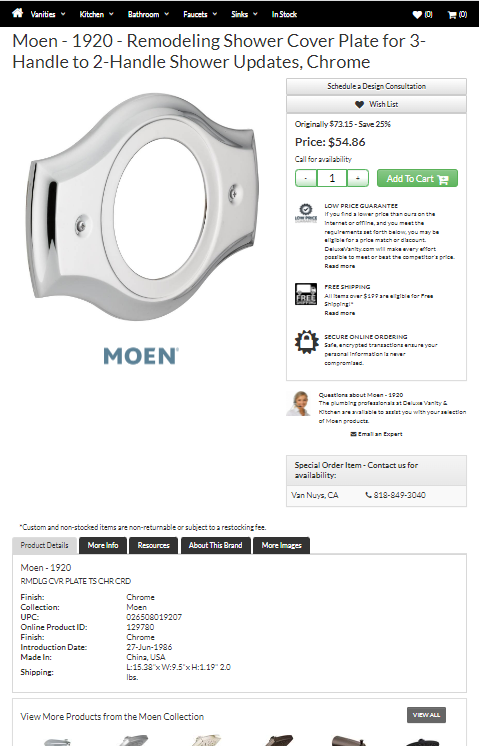
-
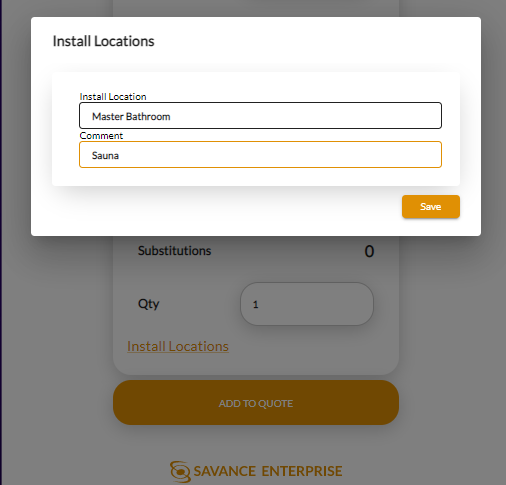
Tap on Install Location to add that information. You can only add one install location.
-
Enter the location name (for example Master Bathroom) and a comment (for example, where in that location or other info).
-
Click Save when done.
-
When ready, click Save to Quote to add it to the quote. Or you can tap the back button at the top left to go back to the inventory search if that wasn’t the item you needed.
-
Once you tap Add to Quote, the screen will return to the Cart (the main quote screen for that quote), listing the header info and the items in the cart, as well as a running total.
-
From there you can search or scan for another item.
Delete Item from Quote
-
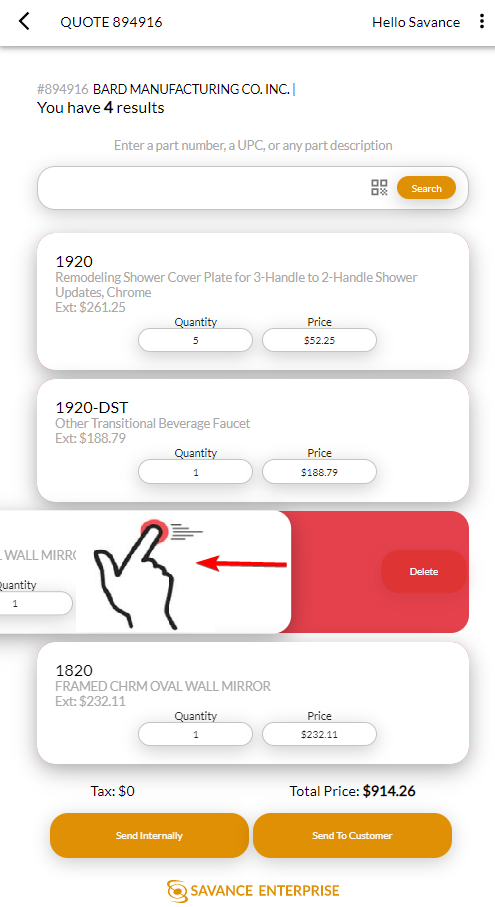
To delete an item from the cart, swipe an item to the left and an option to Delete it will appear in red. Once you tap the delete button, the item will be removed from the cart.
-
When you’re done adding items to the cart, you have 2 options (you can do both or neither):
-
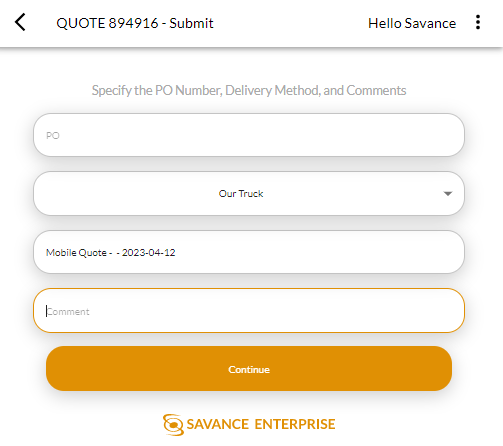
Send Internally: Sends to the sales person only.
-
This also gives the ability to specify the customer PO number, delivery method, and add any comments needed.
-
Tap Continue to send the quote. When you tap Continue, it sends it and returns you to the cart screen.
-
-
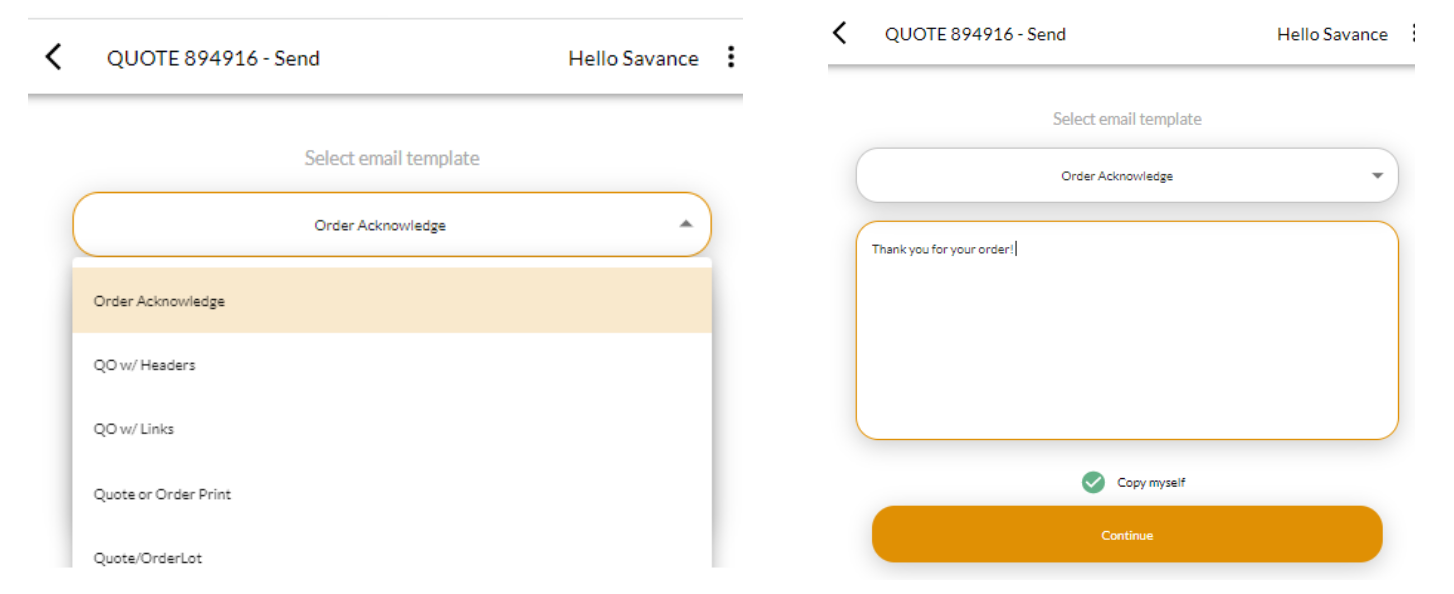
Send to Customer: Sends to the customer and gives the option to copy the sales person/quote creator.
-
Select an email template and add a message if desired.
-
The option to “copy me” is defaulted to yes.
-
When ready, tap Continue. When you tap continue, it sends it and returns to the Home screen.
-
-
-
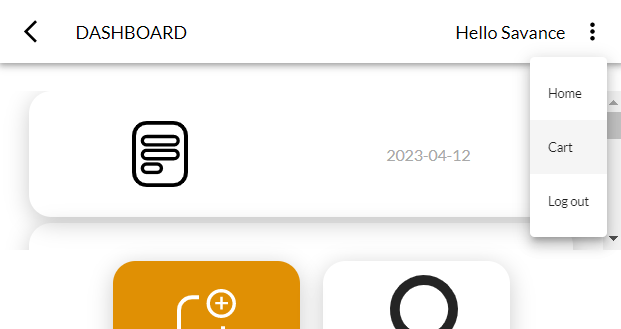
If you want to skip sending the quote anywhere, you can just go back to the home page by tapping the 3 dot menu at the top and tap Home, if you’re done with the quote.
-
From there you can go from the sales floor/showroom to the sales desk and pull up the quote on Savance desktop, and convert it and continue the transaction from there.
-
Tapping the Cart option from the home screen will take you back to the last quote you were on.
Quote/Order Search
-
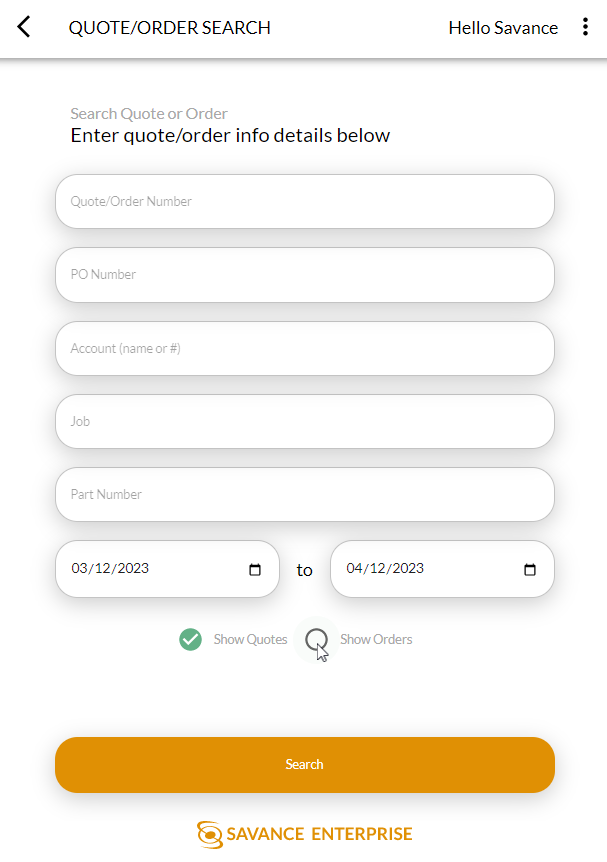
To search for a quote or order, from the home page, tap on the Search Quotes/Orders icon.
-
Enter some search criteria to run the search. You can also specify if you want to see both quotes and orders, or one or the other.
-
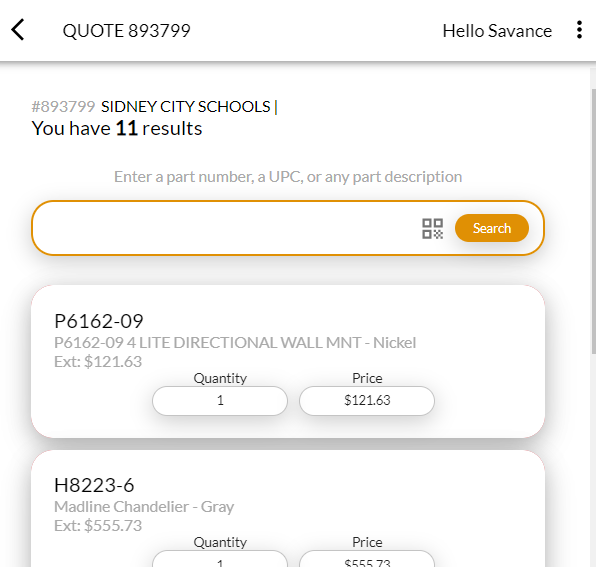
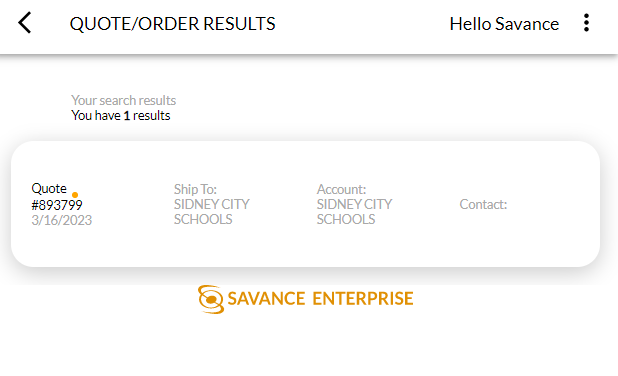
The list of results will appear based on the search criteria entered.
-
Tap on the quote/order to view details.
Inventory Search
-
To look up inventory you can tap the inventory search icon in the home page.
-
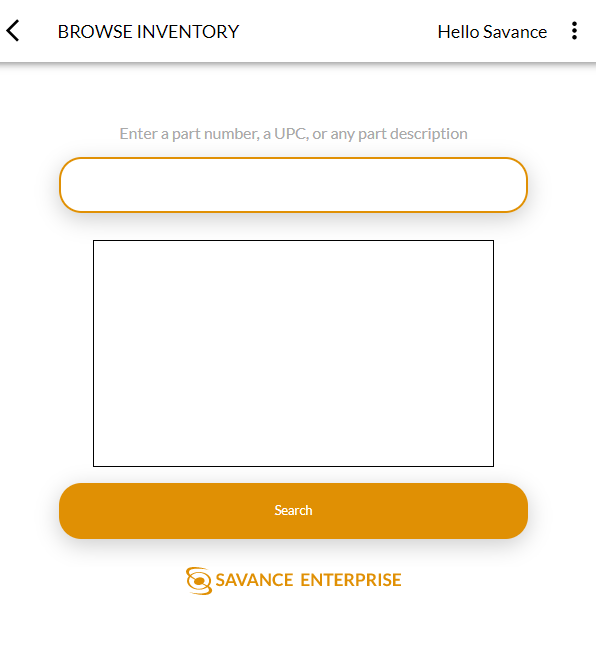
Start typing in any item info like part number, upc, or description. This can be partial information too, it will do a search for any item that contains those characters.
- If your device has a camera or scanner, you can also scan a barcode or QR code.
-
Tap search and the Inventory Results will appear. If you have images attached to your part numbers, they will show here too, with other details like description, unit of measurement, availability, and price.
-
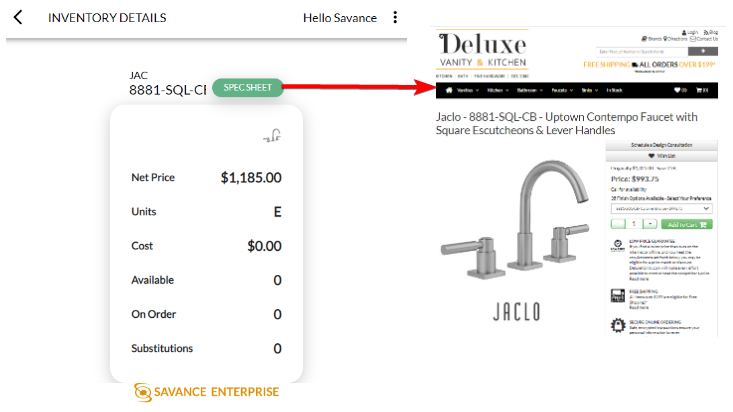
Tap on an item to view the details screen for it. It includes net price, units, cost, availability, on order, and substitutions.
-
If that item has a spec sheet, either url or pdf, tapping the green Spec Sheet button will open that link to view all the product details.
-
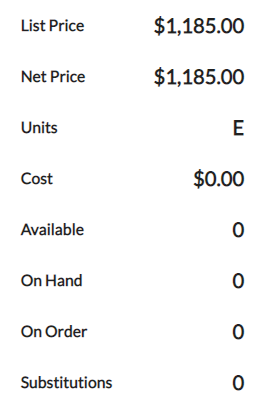
If you tap on any of the information on the item, more information will appear: List Price, and On Hand.
Accounts Search
- Tapping on the Accounts icon will bring up the accounts search screen. You can enter either the name or account number and it will search for any account with those characters.

-
Tap on a customer name to view their details like address, phone, and fax.
-
Tap Show all Ship Tos if there are any ship to addresses added, it will show those.
-
Tap Show All Contacts to see that list too.
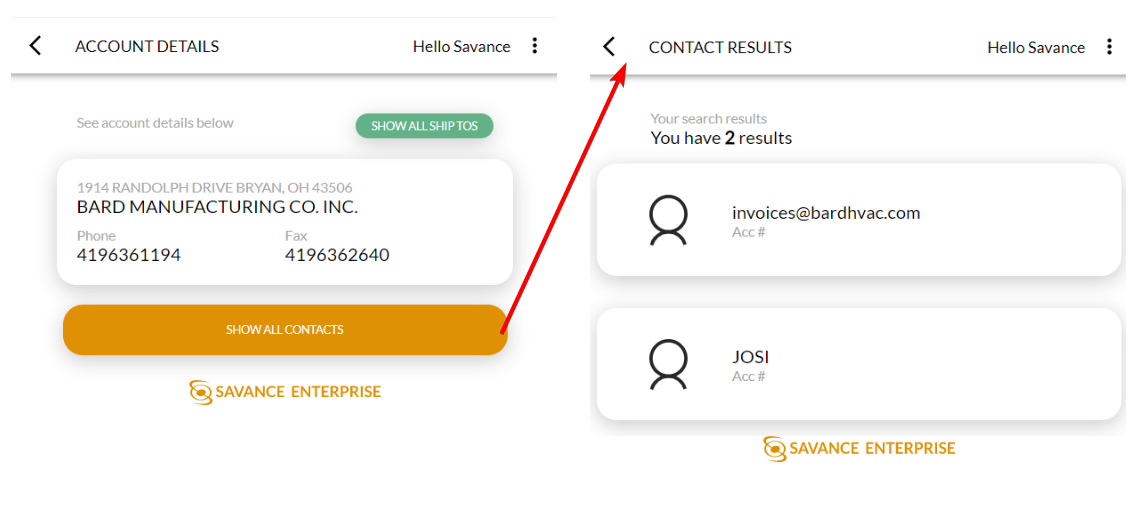
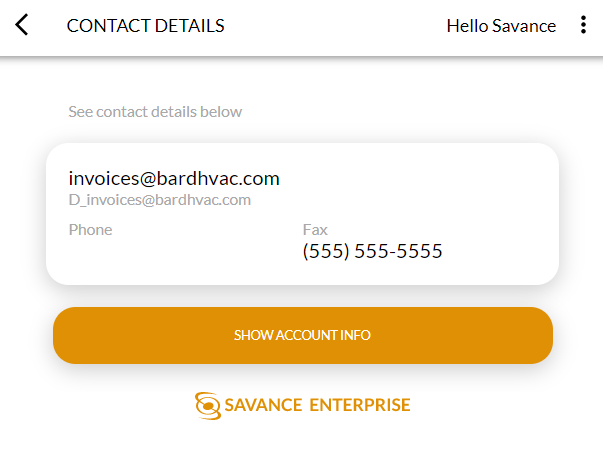
- If you tap on the contact, it will show more details for them. Email, phone and fax.
-
You can either tap the back button to get back to the account screen or tap Show Account Info to get back.
Contacts Search
-
Tap on the Contacts icon to search for contacts. The search criteria are just first name and/or last name.
-
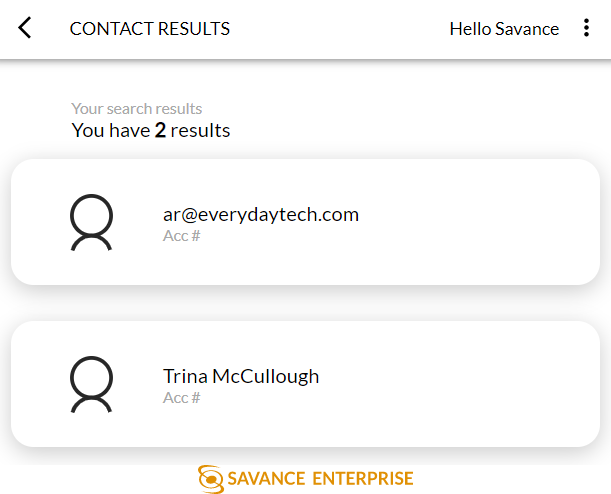
Tap on a result to open the contacts detail screen.